Bingo 101 Login and Account Access
The Bingo 101 login uses the mobile number you registered with, confirmed by an OTP or your password. This guide covers signing in, fixing OTP and password problems, and keeping a real-money account secure.
Sign In
Your Bingo 101 account is tied to the mobile number you registered with. Sign-up only needs that number and an OTP, with no email involved, so every Bingo 101 login starts from the same number. Once you are in, the same account and wallet cover every game in the app.
Before you sign in
- The genuine app is installed: version 1.2.0, 35.7 MB, on a phone running Android 5.0 or later. If you are not sure where your copy came from, reinstall it from the Bingo 101 APK Download for Android page.
- The SIM for your registered number is in the phone, or close by, with a signal.
- Your mobile data or Wi-Fi actually loads pages.
- You know whether your account uses a password or an OTP.
- Nobody is next to you, on a call with you or watching a screen share while you type a code.
Step by step
- Open the Bingo 101 app on your phone.
- Enter your registered mobile number.
- Verify with the OTP sent to that number, or with your password if you have set one.
- The lobby opens with your balance and games ready.
OTP or password
| Method | What you need | When to use it |
|---|---|---|
| Mobile number and OTP | Your registered number and a phone that can receive SMS on it | First sign-in on a new phone, after a reinstall, or when you cannot remember your password |
| Mobile number and password | Your registered number and the password you set | Everyday sign-in on your own phone once a password is set |
If one method fails, the other is usually the way back in: an OTP solves a forgotten password, and a known password gets you past a missing OTP. After you sign in, the Bank screen shows your Total Balance with Bonus, Cash and Withdrawable Balance boxes, and the lobby leads to every category described in Bingo 101 Games: How Each Category Works.
OTP Problems
A missing OTP is the most common reason a Bingo 101 login stalls. Most cases come down to the signal, the number or the phone settings rather than the app.
- Check the number. It must be the exact number you registered with. A different number opens nothing, because the account is tied to the original one.
- Check the signal. Move to a spot with better coverage. If Wi-Fi calling is switched on, turn it off and try again.
- Wait before resending. Give the code 30 seconds to a minute, then tap resend once. Many quick requests in a row can slow things down further.
- Use the newest code. If two messages arrive, enter the most recent one.
| Problem | Likely cause | Fix |
|---|---|---|
| OTP not arriving | Weak signal, a typo in the number, or Wi-Fi calling on | Check the signal, wait about a minute, turn off Wi-Fi calling, request one new code |
| Wrong number | A different number from the one you registered with | Sign in with the original registered number |
| New phone | App not installed yet, or the registered SIM is in another phone | Install the genuine app, then sign in with the same number and OTP |
| Login screen will not load | An old version of the app | Install the latest APK over the old one; if that fails, uninstall first and install again |
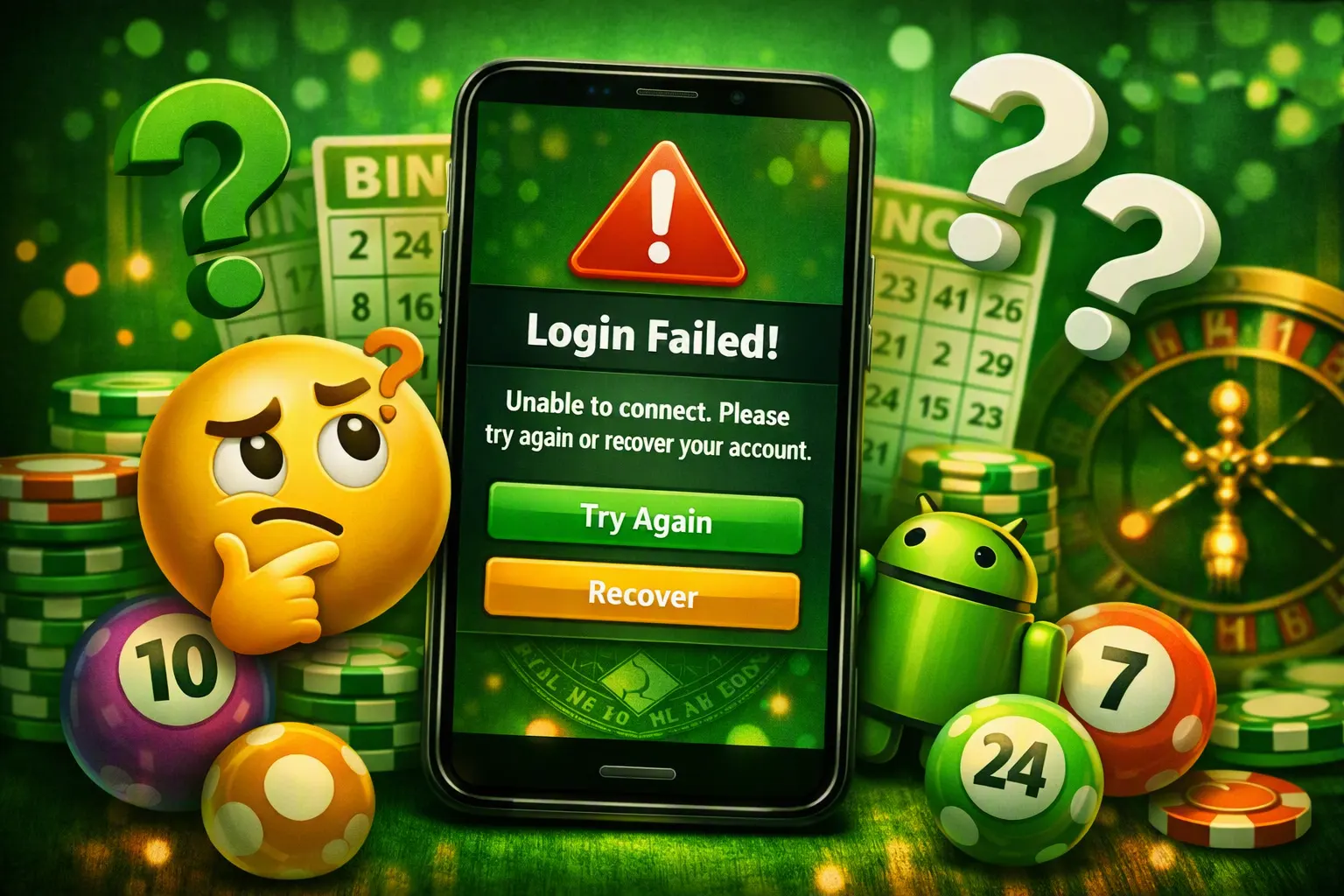
| Login fails right after install | Connection, wrong details or temporary maintenance | Check your internet and details, then try again later |
Updates are not automatic. The app usually prompts you when a new version is out, and installing over the top keeps your account and balance because both are tied to your number, not to the file on your phone.
Password Recovery
If you have forgotten your password, use the reset or OTP login option on the sign-in screen. The reset sends a fresh OTP to your registered number, and you then set a new password inside the app.
- Tap the reset or forgot password option on the sign-in screen.
- Enter your registered mobile number.
- Type the OTP that arrives on that number.
- Choose a new password that you do not use for any other account.
- Sign in again with the new password and check the Bank screen.
Recovery only works through your registered number. If someone offers to reset your password for you, or asks you to read out the code so they can do it, stop: that is how accounts are taken over. Our guide on how to protect your password and OTP explains the habits that keep recovery in your own hands.
Account Security
Your Bingo 101 login protects a real-money wallet, so treat it like a banking app. Use a strong password that you do not reuse elsewhere, and never share an OTP or password with anyone, including people who say they are support.
What genuine support never asks for
- Your OTP, password, UPI PIN or a screen share.
- A fee to speed up a withdrawal or to release money.
- A chat that starts from a personal WhatsApp or Telegram number that contacted you first.
Signs of a fake app or fake login page
- A different app name, often with mod, pro or random letters added.
- A file far smaller than 35.7 MB, or oddly large.
- Requests to turn off Play Protect, grant device administrator rights or install a second helper app.
- Access to your SMS. The genuine app does not ask for SMS, contacts, storage, location, camera or microphone.
- Any page or message outside the app that asks for your number together with an OTP.
The Bingo 101 listed on Google Play is a different app from another developer. Is Bingo 101 real or fake? shows how to check the copy on your phone.
If you think your account is compromised
- Uninstall any copy you do not trust and reinstall the genuine app.
- Change your password straight away.
- Tell support through Contact Us in the app and include your UID.
- If money was taken, call 1930, India's national cyber fraud helpline, and file a complaint at cybercrime.gov.in.
When to Contact Support
Work through the checks above first. If the genuine, current app still will not let you in, contact support through the Contact Us screen in the app, where online customer service runs 24/7. If you cannot sign in at all, the support email listed on the official site, support@bingo101.com, is the alternative.
- Your UID, if you have it. It shows at the top of Contact Us and in your profile.
- Your registered mobile number.
- A screenshot of the error, with the time it happened.
Do not include your OTP or password in any message. Once you are back in, it is worth finishing KYC early, as the Bingo 101 KYC guide explains, so your first withdrawal is not held. More help is in the Bingo 101 customer care guide.
Bingo 101 is for adults aged 18 and over. Set a spending limit before you play, and see the responsible gaming page for the tools available on your account.
Frequently Asked Questions
How do I log in to Bingo 101?
Open the app, enter your registered mobile number and verify with the OTP or your password. The lobby opens with your balance.
Why is my Bingo 101 OTP not arriving?
Check that the number is the one you registered with and that your phone has a signal. Turn off Wi-Fi calling, wait about a minute and request one new code; if it still fails, contact support through the app.
I forgot my Bingo 101 password. How do I reset it?
Use the reset or OTP login option on the sign-in screen. A fresh OTP goes to your registered number and you set a new password.
Should I share my OTP with support?
No. Never share an OTP or password with anyone, including people who claim to be support. Genuine support does not need them.
Will I lose my balance if I reinstall the app?
No. Your account is tied to your mobile number, so signing in again with the same number brings your balance back.
Related Guides
- Protect Your Gaming AccountProtect Your Gaming Account
- Bingo 101 App Not Working: Troubleshooting GuideBingo 101 App Not Working: Fixes
- Bingo 101 Customer Care and Support GuideBingo 101 Customer Care
- Bingo 101 APK Download for AndroidBingo 101 APK download
- Is Bingo 101 Real or Fake? Identity and Safety ChecksIs Bingo 101 Real or Fake?